Workbench Overview
When you open the Workbench, you see a view with the following blocks:
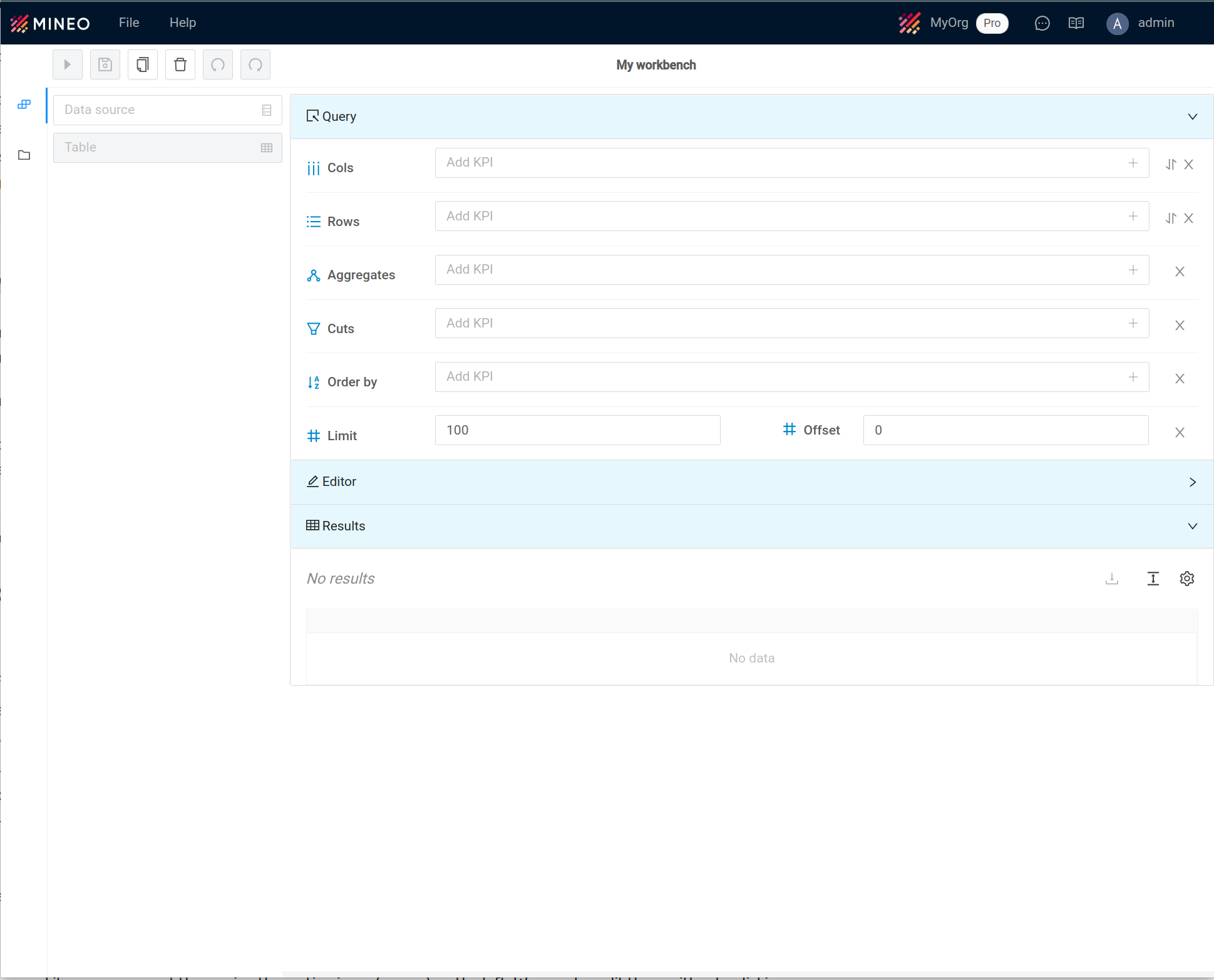
- Top button panel: quick editing actions.
- Side menu: for selecting the information source, projection to query and cube fields.
- Query: structure of the query to edit or even copy and paste to replicate the query.
- Query: to create the query to be executed
- Results: output results in table format
Making a query
The first thing to do when running a query in the Workbench is to select the data source to be used and the projection on which to run the query.
In the side menu there are two drop-down menus to select both options:
- Select Source: to select the data source (it must be created first).
- Select Table: to select the table on which the query will be performed.
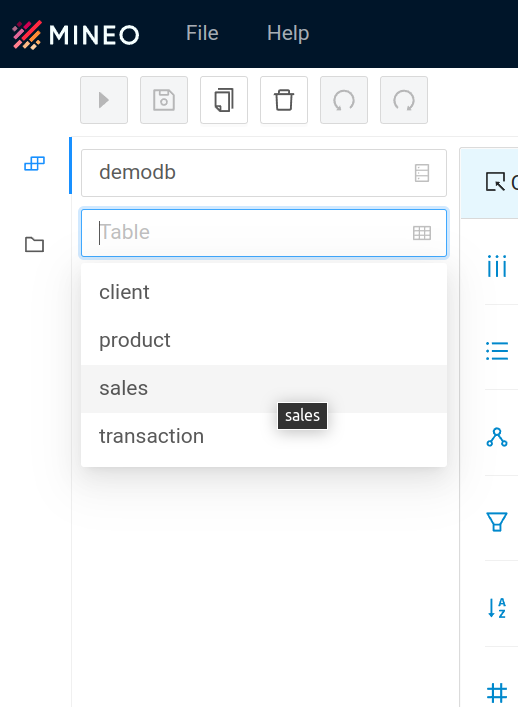
Once the source and projection have been selected, a tree will appear with the different fields available to make a query. To facilitate the search, a search engine has been activated.
Query parameters
You can include the following parameters to build a query:
| Parameter | Description |
|---|---|
| Rows | Fields to generate as rows |
| Cols | Fields to be generated as columns |
| Aggregates | Rules for aggregating the data specified in rows and cols |
| Cuts | Filters to apply to the database |
| Sort by | Field by which to sort the query result |
| Limit | Maximum number of records to display in the result set |
| Offset | Starting record of the query |
To enter each parameter, use the search box of each element and choose from the drop-down list that appears:
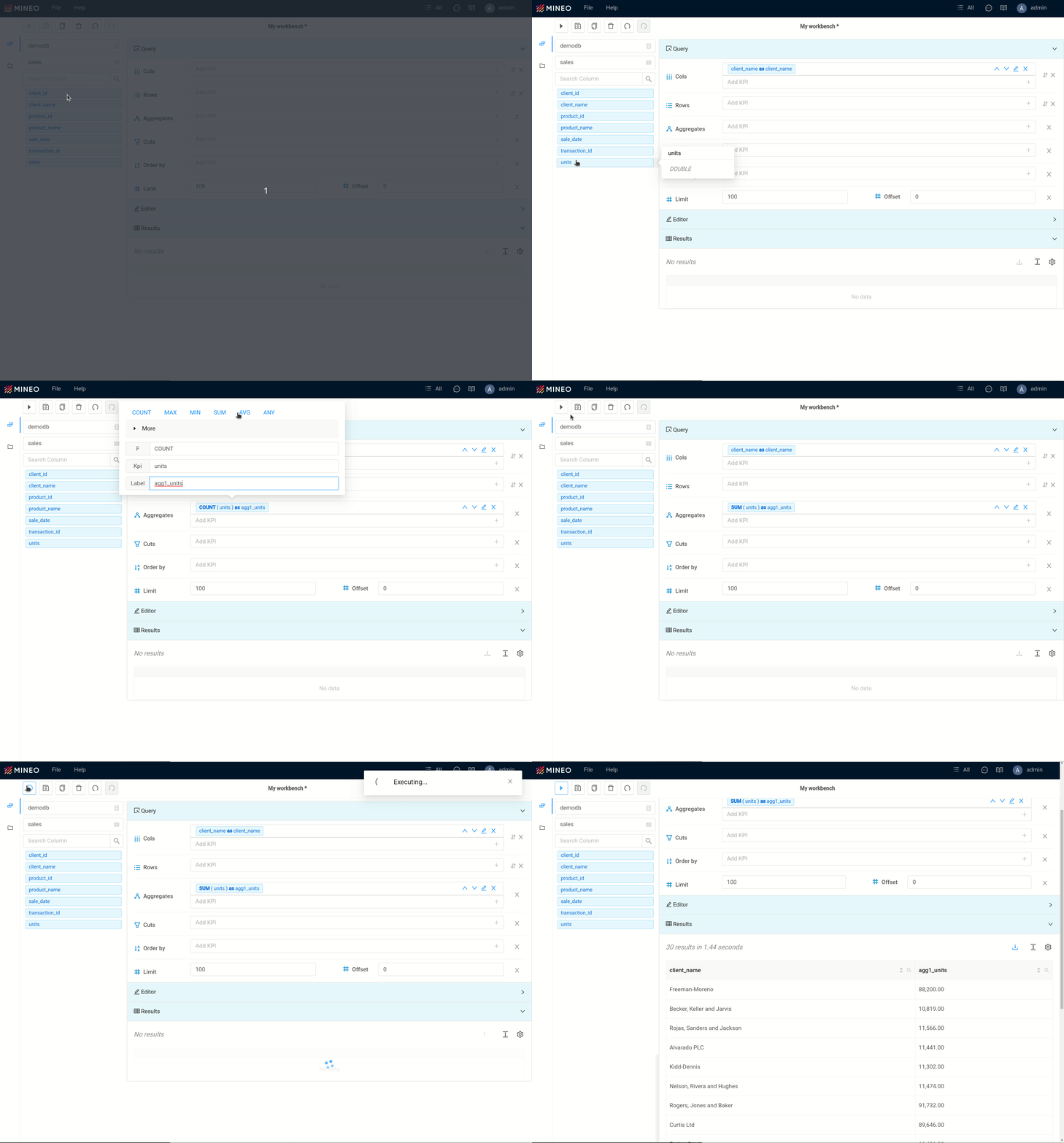
You can also do it from the side search box, using drag and drop.
If you select several items, sort them using the sorting icons (arrows) on the left. You can also edit them, either by clicking on them or by using the edit icon on the left.
Rows and Columns
When you edit any of them, a drop-down menu lets you change:
- KPI: the column to use. You can insert here SQL expressions.
- Label: The label to apply to this row/column.
Aggregates
When you edit them, a drop-down lets you edit:
- F: type of function to use (the most used ones are listed, for quick insertion)
- KPI: The column to use
- Label: The label to apply to the result of this aggregate.
Cuts
When you edit them, a drop-down lets you edit the expression. It is currently free text sent directly to the database.
Sort by
When you edit, a drop-down lets you edit the KPI and select the sort direction: ascending or descending.
Limit/Offset
These two parameters are numeric and can be entered by the user depending on the needs of the query:
Results
The results of the query appear in the last block, which is displayed in table format.
In the results block you can:
- Total records and execution time — displayed at the top of the results table.
- Browse results — paginate through the data using the navigation controls.
- Download — export the results in Excel format using the download button above the table.