Notebooks
Notebooks bring code, no-code, and AI together in one place: write Python, build interactive widgets without programming, and ask the built-in AI assistant for help — all in a single document. Work in real time with your team, then deploy your notebook as a data app with one click.
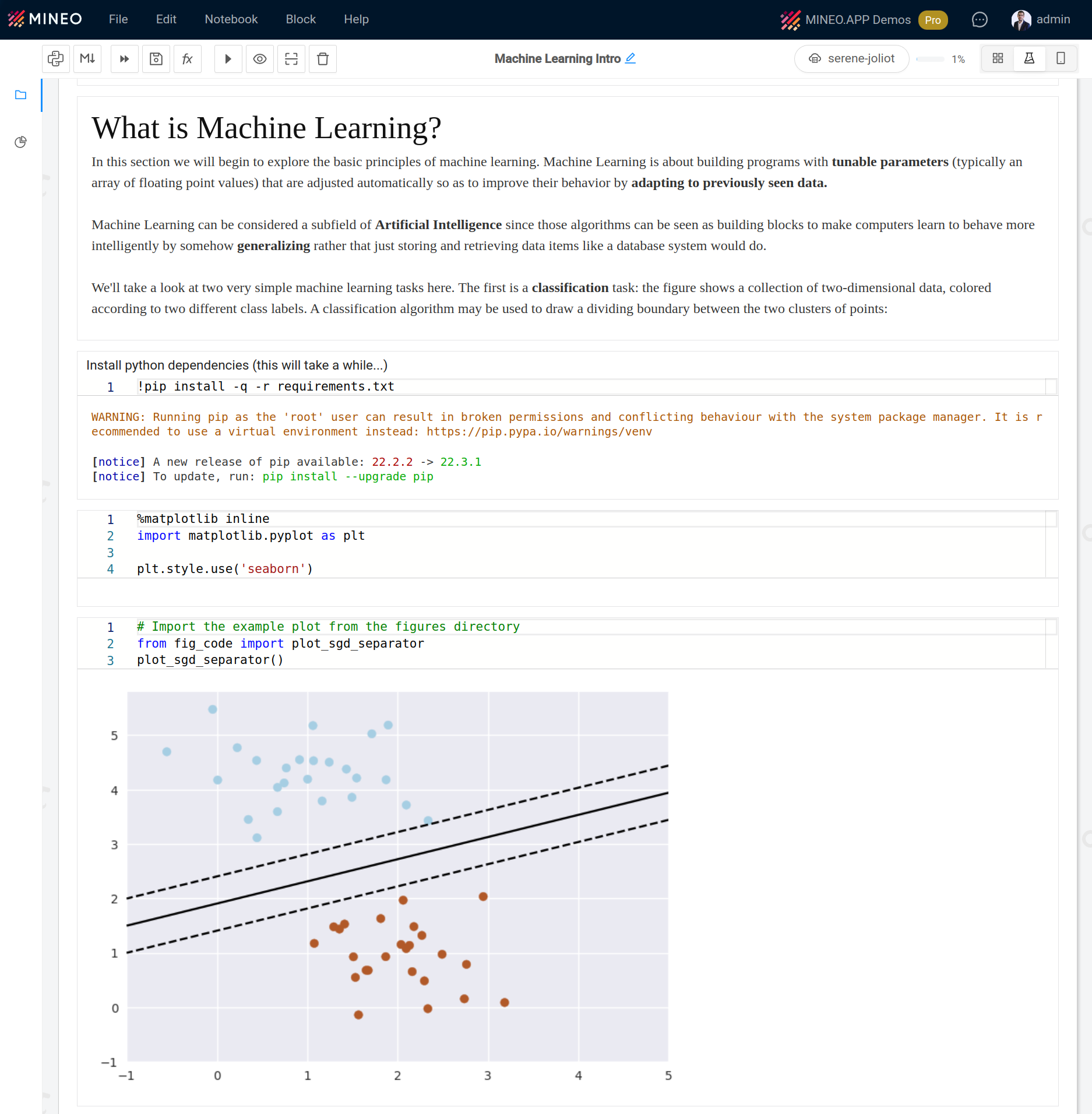
The main features of notebooks are:
| Feature | Description |
|---|---|
| Blocks | Built using blocks of different types |
| Layout modes | Supports Data app and Scientific layout modes |
| No-code Widgets | Charts, tables, titles, images, and more — interact with content and display information without programming knowledge |
| Data sources | Integrate data sources to access databases directly |
| Version control | Built-in version control system |
| PDF export | Export your notebook to PDF |
| Pipelines | Run your notebooks automatically and schedule them |
| File system | Integrated file system to store your data, up to 10TB |
| Permissions | Share your notebooks and control who can read, edit, or run them |
In the following sections, you will learn how to use notebooks in depth.
Your first notebook
If you just created your first MINEO project, you have an Examples folder with notebooks that you can check. Now, you will create your first notebook.
- In the file explorer, navigate to the folder where you want to create it.
- Click the "+" button on the upper right.
- Select New... → Notebook.
- A new notebook will open, ready to use.
Notebook tutorial
When you enter your first notebook, you will see a pop-up window with a tutorial. This tutorial will help you understand the interface by walking you through each section and element.
The tutorial is recommended, but you can skip it at any time. If you want to open the tutorial later, click the 'Tutorial' button on the 'Help' menu on the top.
See also
- Notebook AI assistant — the built-in AI that helps you write and understand notebook code.
- Widgets — no-code charts, tables, and inputs to build interactive notebooks.
- Workers — the compute environment that runs your notebook code.
- Data sources — connect databases to query directly from your notebooks.
- Pipelines — schedule and automate your notebook runs.
📄️ Blocks
Blocks are the basic unit for building notebooks.
📄️ Layouts
Notebooks have two layout modes: Data app and Scientific.
📄️ Settings
Open the properties panel from File → Properties. It contains three tabs:
📄️ MINEO Assistant
MINEO Assistant is a powerful AI agent designed to enhance your coding and data analysis experience within MINEO.
🗃️ Widgets
13 items
📄️ Comments
You can add and answer comments in your notebooks. To add a comment, go to the comments section of a block
🗃️ Selectors
2 items
🗃️ Workers
1 item
📄️ Version Control
MINEO's notebooks have a built-in version control system that tracks all changes made by you or any other partner and allows you to go back to any previous version of your notebook.
📄️ Resources and Variables
Resources
📄️ Hotkeys
There are multiple hotkeys available inside a notebook.
📄️ Sharing Notebooks
MINEO provides several ways to share your notebooks with other users, allowing for collaboration and knowledge sharing across your organization. This guide explains the different methods to share notebooks and the permissions associated with each.
📄️ Jupyter Extensions
MINEO supports a range of Jupyter extensions, offering enhanced functionality and flexibility within your notebooks. Here, we'll cover some commonly used extensions, including autoreload, timeit, memoryprofiler, and lineprofiler, each adding valuable capabilities to your development workflow.
🗃️ Snippet
5 items
📄️ Integrations
Methods to integrate MINEO notebooks with external tools like Github and Git.