Resources and Variables
Resources
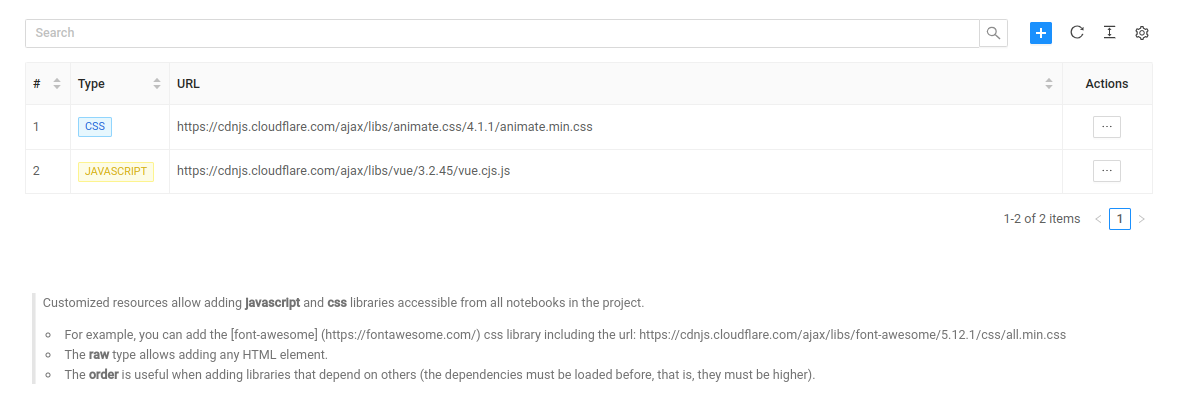
Resources are web libraries that get embedded into your notebook's HTML. This means you can download and use custom Javascript and CSS files, and even other custom raw resources.
For example, you can download Animate.css and use it to animate your markdown:
<h1 className='animate__bounce'>This text will bounce</h1>
You can add resources on two levels: project and notebook. Project resources will load on all notebooks,
and after they load, notebook resources will load on top of them.
When creating a resource, you will introduce its URL and its type (CSS, JS, CSS Code).
CSS and JS files will get inserted in your notebook's HTML as <link> and <script> tags respectively;
CSS code resources will let you write standard CSS rules directly instead of including a external source.
cdn.js is a great place to find web libraries to use in your notebooks.
When loading resources with dependencies, make sure they are listed in the order they need to be loaded.
Adding resources: Project
To add resources to your project, go to the project settings page and click on the 'General' tab and then the 'Resources' inner tab. There you have a table to browse and add resources.
Adding resources: Notebook
To manage the specific resources of a notebook, you can access the same table through the 'File' menu and then the 'Resources' option.
Variables
Variables are a global way to store, read and update values all across your project. They are a great solution to define environment variables, or style settings that will be read in multiple notebooks.
Defining variables
To define variables in a project, go to the project settings page and click on the 'General' tab and then the 'Variables' inner tab. There you have a table to browse and add variables. When creating a variable, you have to add a name, a value and an optional description.
The value of a variable must be valid JSON. Plain strings and numbers are also considered valid JSON.
To browse your variables inside a notebook, you have the 'Variables' option inside the 'File' menu. Here you have the same variable table, but you can only read and search them.
Reading variables
Imagine we have a variable, with var as a name and "Hello World!" as a value. You can use the following
Python code to read it and print it:
var = project_variables_api['var']
print(var)