Sharing Notebooks
MINEO provides several ways to share your notebooks with other users, allowing for collaboration and knowledge sharing across your organization. This guide explains the different methods to share notebooks and the permissions associated with each.
Access control overview
Before sharing a notebook, it's important to understand the access control system in MINEO:
- Private Access - Only explicitly assigned users/groups can access the notebook
- Public Access - The notebook can be shared with a wider audience
- Permission Levels - Users can have different levels of access (view only, edit, etc.)
Methods for sharing notebooks
1. User and group permissions
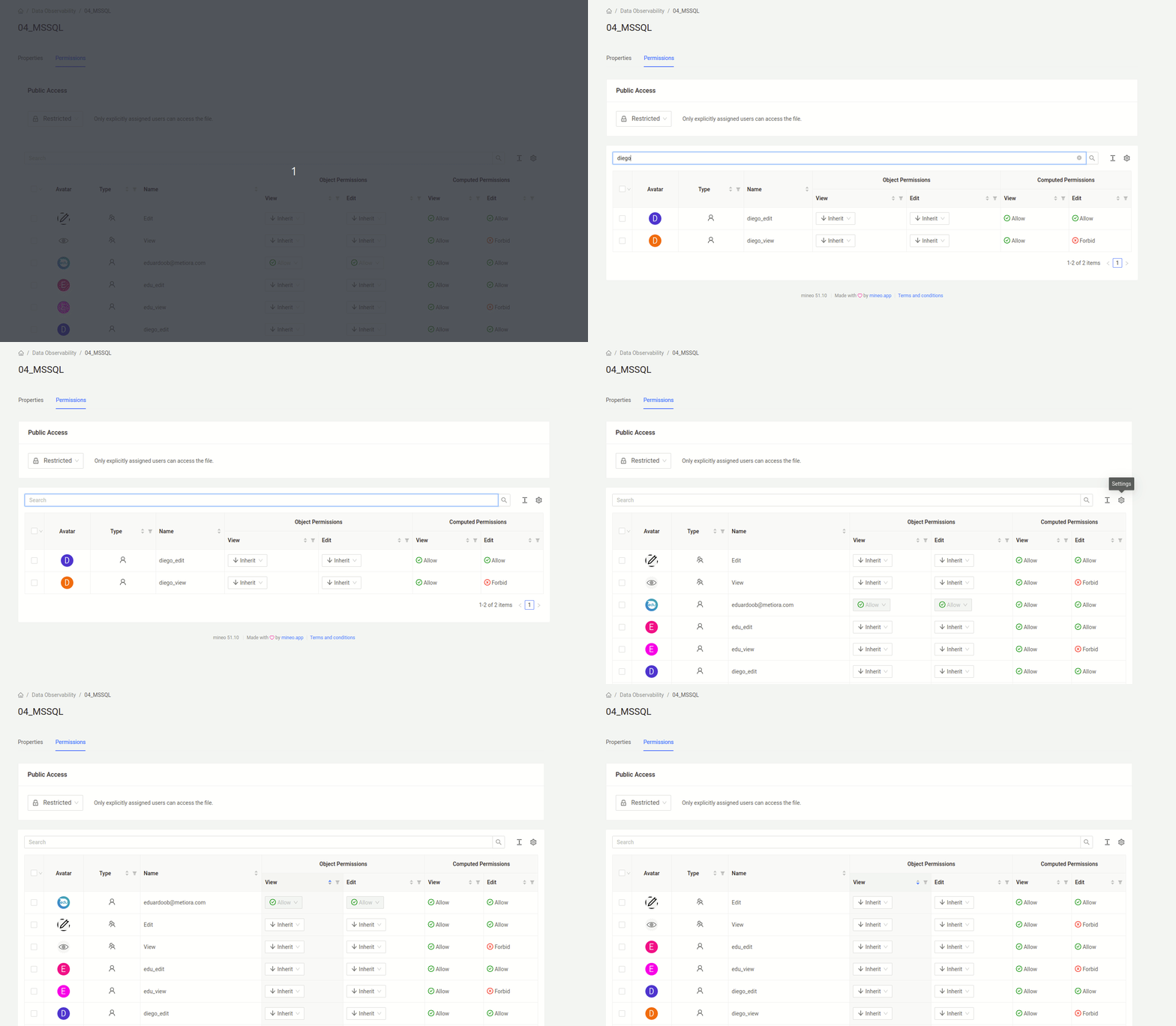
The most direct way to share a notebook is by explicitly granting permissions to specific users or groups:
- Open your notebook
- Go to File > Properties
- Select the Permissions tab
- Toggle between User and Group mode using the switch in the top-right corner
- Click Add User/Group to specify who should have access
- For each user or group, set the appropriate permissions:
- View - Allow, forbid, or inherit viewing permission
- Edit - Allow, forbid, or inherit editing permission
2. Public access sharing
To share your notebook with a wider audience within MINEO:
- Open your notebook
- Go to File > Properties
- Select the Permissions tab
- In the Public Access panel, choose one of the following options:
- Restricted - Only explicitly assigned users can access the notebook
- Reading - Anyone in MINEO can view the notebook, but not edit (unless explicitly allowed)
- Writing - Anyone in MINEO can view and edit the notebook

To access public resources, users must be logged in to MINEO. Public access does not mean the notebook is accessible to users without MINEO accounts.
3. Sharing via URL
When a notebook has Reading or Writing public access, you can share it directly via URL:
- Set the appropriate public access level as described above
- Copy the notebook's URL from your browser's address bar
- Share this URL with other MINEO users
When recipients click the link, they'll be taken directly to the notebook with the permissions you've set.
4. Creating link resources
You can create link resources that act as shortcuts to notebooks within your file system:
- Navigate to the folder where you want to place the link.
- Click "+" → New... → Link.
- Configure the link:
| Option | Description |
|---|---|
| Target Link | Path or URL of the notebook you want to link to. |
| Internal | Enable for notebooks within your MINEO instance. |
| Open in new tab | Opens the notebook in a new browser tab when clicked. |
Links are useful for organizing notebooks in multiple locations without duplication, or for pinning frequently used notebooks in a shared folder.
Sharing notebooks via the share menu
You can also share notebooks using the File > Share menu, which provides a comprehensive overview of permissions and related elements:
- Open your notebook and select File > Share
- This opens a modal with the Share and Related Items tabs
- In the Share tab, you can adjust public access levels and specify permissions for different users or groups
- Use the Related Items tab to grant permissions to resources like images or data sources essential for the notebook to function correctly
The Related Items tab helps you identify and fix permission mismatches between your notebook and its dependencies. This ensures that users who can access your notebook can also access all the resources it needs.
Controlling code visibility
For notebooks shared with view-only access, you can control whether users can see the underlying code:
- Open your notebook
- Go to File > Properties
- Select the Options tab
- Toggle Allow to view the code in read only mode:
- Enabled - Read-only users can see both code and outputs
- Disabled - Read-only users can only see outputs, not code
This setting is particularly useful for dashboards and reports where you want to share the results but protect your code implementation.
Best practices for sharing notebooks
- Use Groups - For team collaboration, create user groups and assign permissions at the group level for easier management
- Consider Inheritance - Use permission inheritance strategically to simplify access management for folders containing multiple notebooks
- Document Sharing Status - Include information about who has access in the notebook description or as a markdown cell at the top
- Review Permissions Regularly - Periodically review who has access to sensitive notebooks
- Check Related Items - Ensure all resources used by your notebook (images, data sources, etc.) have compatible permissions
Related topics
- Permissions System - Detailed explanation of the MINEO permissions system
- Project Members - Managing users and groups in your project
- Links - Creating and managing links to resources