API
MINEO offers an API with useful services related to the MINEO platform. Learn how to use them in your Notebooks.
Programmatically set block title
You can set on the fly the title of a block during another block execution. The title is changed during the execution, but the original title is not touched.
The function set_block_title can be imported from mineo_api.blocks, and it needs the following parameters:
title: The new title for the block, by default, is an empty string.block_uuid: The uuid of the block to change the title, by default it is the same uuid of the block that calls the method. The uuid can be retrieved from the Environment Variables or opening the block properties under the General tab.
Example
from mineo_api.blocks import set_block_title
# Fill in your target block_uuid and desired title
set_block_title(title="This will be the updated title!", block_uuid='12573805-7bd8-4121-a0c7-689b905ab21a')
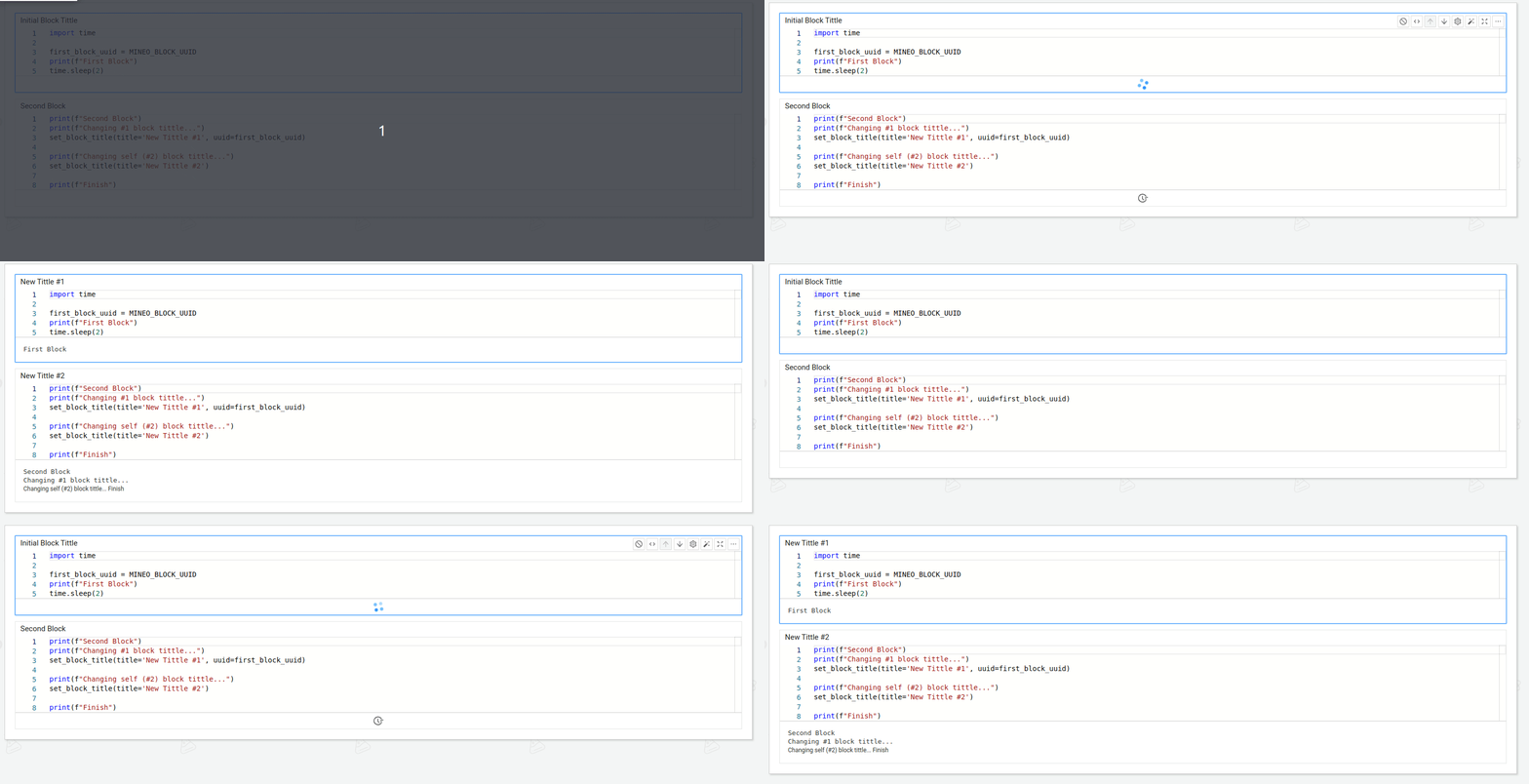
The block's title must be visible in order to visualize the change. You can change this settings on the Block Settings
Execute another block
You can execute another block from a block. The function execute_block can be imported from mineo_api.blocks with the following parameters:
from mineo_api.blocks import execute_block
if count < 4: # Care to have a way to avoid infinite loops
    count = count + 1
    execute_block(block_uuid="dcdf415c-a0f4-42b2-b228-2d90bd79c50c", run_all_on_change=False)
block_uuid: The uuid of the block to execute. The uuid can be retrieved from the Environment Variables or opening the block properties under the General tab.run_all_on_change: If True, it will run all the blocks after the given (same as 'Execute all after' action), by default, it is False, so the execution will not continue by default after the passed block execution.
Example In this example we can see both the single execution and the execution of all the blocks after the given one. The execution order is A -> B -> C -> D -> E -> B (by C trigger) -> B (by E trigger) -> C -> D -> E -> B (by second C trigger)
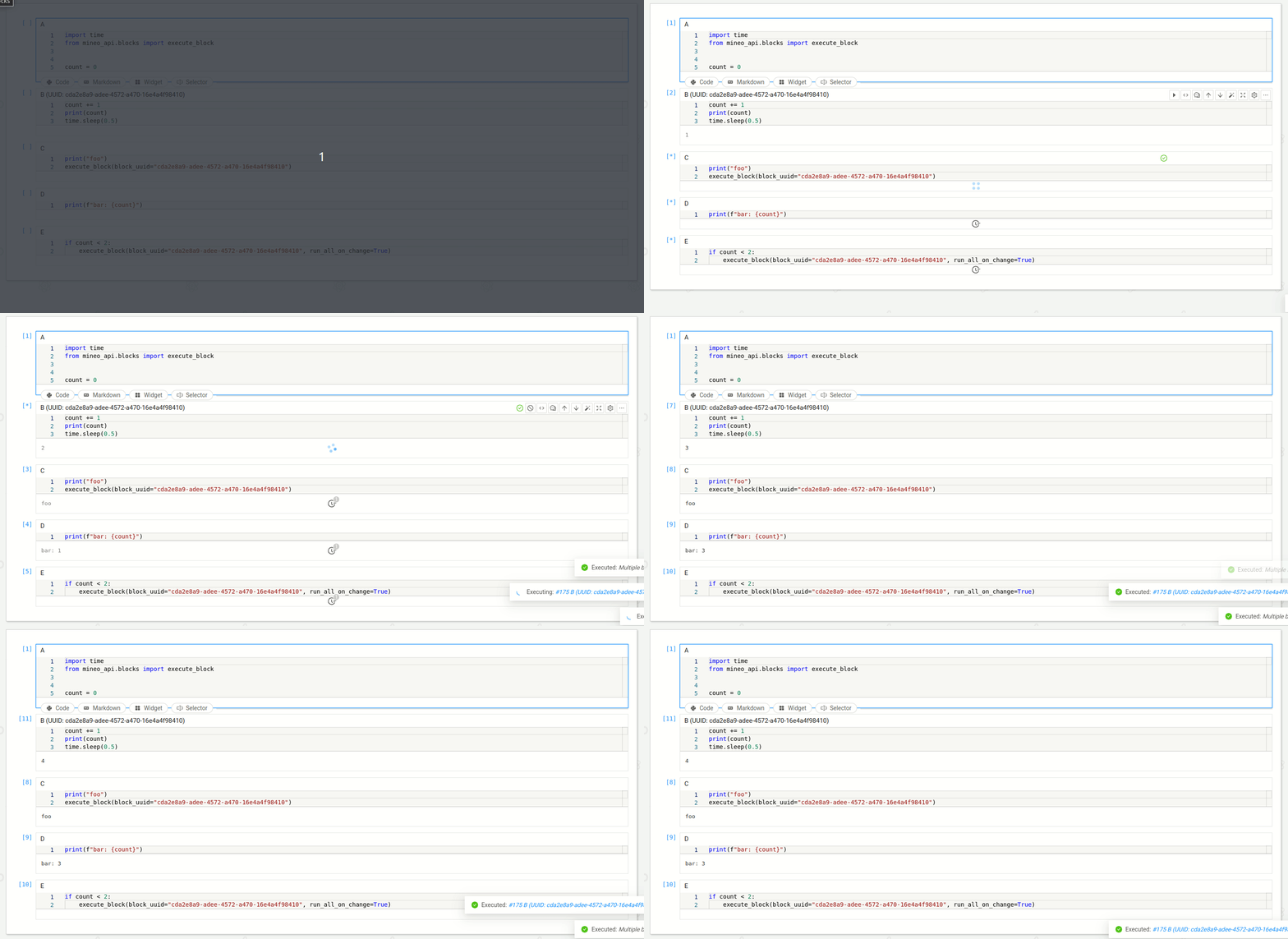
Be careful with the execution order of the blocks or which block do you wish to execute, you can create an infinite loop if you are not careful.
Stop block execution without error popup
Sometimes it might be useful to stop the notebook execution on a certain block and don't show an error notification.
To do this you could throw a MineoUserException and the execution will be stopped.
from mineo_api.exceptions import MineoUserException

raise MineoUserException("Custom user message")
Generate file download links
You can generate secure download links for files within your MINEO project directly from your notebook using the globally available get_download_link function.
Usage:
- The function works with both relative paths and project absolute paths, as long as the file is located within the same project as your notebook.
- Generate the link and display it in a cell output or integrate it into your notebook's interface.
Important: Permission Requirements
For the download to work, you must manage file permissions correctly. Any user accessing your notebook must also have read access to the specific file or its parent folder.
Example:
# Create a test file and generate download link
with open("example_file.txt", "w") as f:
    f.write("Sample content for download demonstration")

url = get_download_link("example_file.txt")

from IPython.display import display, HTML
display(HTML(f'<a href="{url}" target="_blank">📥 Download File</a>'))
Get project variable
Here is an example of programmatically accessing variables defined in the project settings.
# Get a project variable
PROJECT_VARIABLE_NAME = "REPLACE_WITH_YOUR_PROJECT_VARIABLE_NAME" # You can found it in the project settings

project_variable_value = project_variables_api[PROJECT_VARIABLE_NAME]
print(f"Project variable value: {project_variable_value!r}")
Get the link to a resource
This function will return a link to a resource in MINEO. The function get_resource_link can be imported from mineo_api.blocks with the following parameters:
path: The absolute path to the resource.project_uuid: The uuid of the project where the node is located, by default, it is the same project of the running notebook. The uuid can be retrieved from the Environment Variables.
Example
from mineo_api.blocks import get_resource_link
from IPython.display import HTML, display


resource_path = f"Examples"
resource_link = get_resource_link(resource_path)

display(HTML(f"""
<button onclick="window.open('{resource_link}','_blank')">Go to '{resource_path}'</button>
"""))
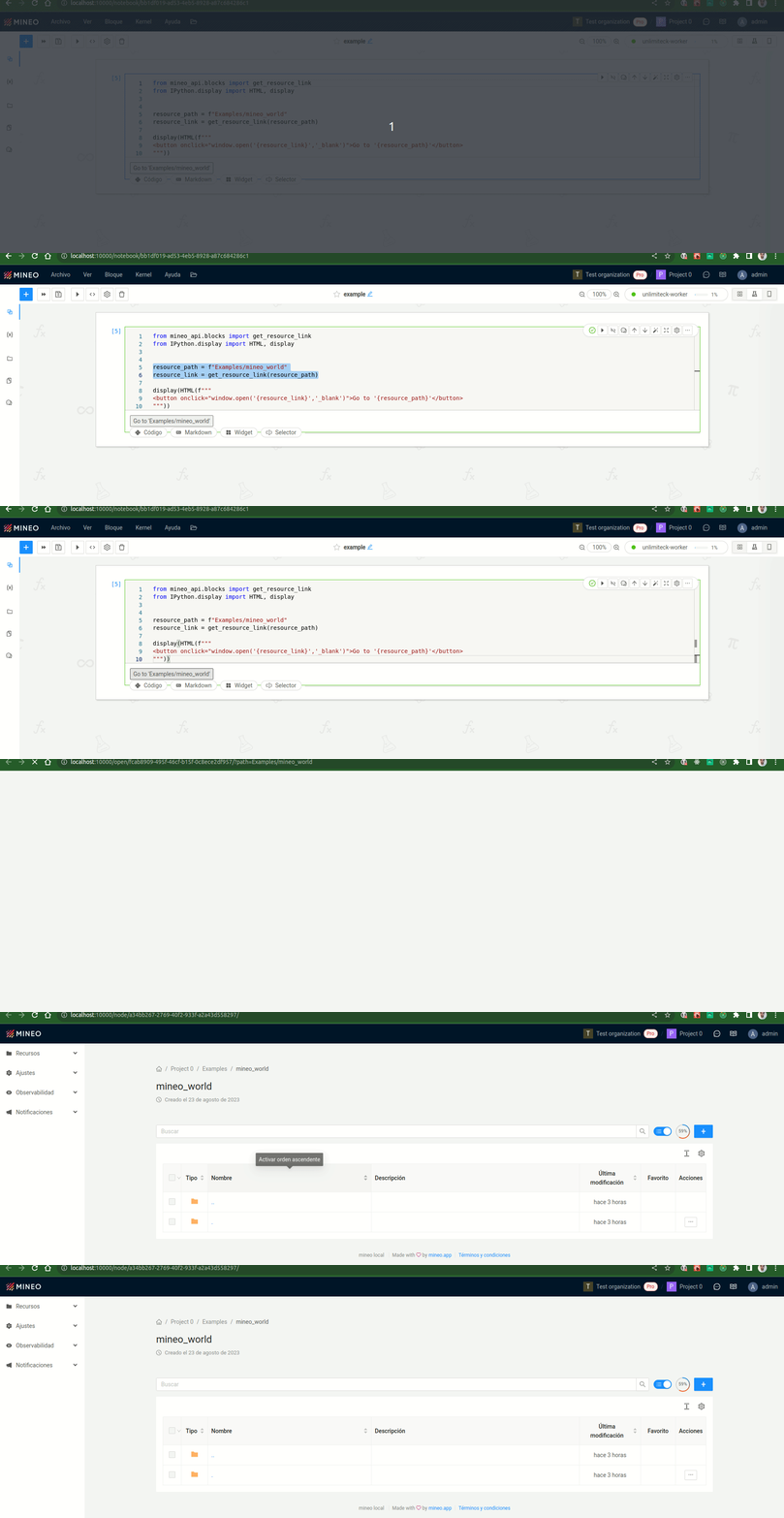
The block's title must be visible in order to visualize the change. You can change this settings on the Block Settings
Queries on data sources
MINEO has a powerful data engine called Datasources which lets you operate with the Workbenches and Data Observability. But also you can use your registered Data Sources on your Notebooks. There are two ways to use the data sources on your notebooks: Using the Widget Query or directly from your Code Block.
from mineo_api.queries import execute_sql

DATASOURCE_UUID = "c9805225-1c17-4f44-8c56-6d17128c5217"
count_query = "SELECT COUNT(0) FROM sales;"

out = execute_sql(datasource_uuid=DATASOURCE_UUID, sql_query=count_query)

print(out)
print(f"Count of sales: {list(out)[0][0]}")

Check a live example of the Query Engine on our Showcase Access datasources from notebooks
Query
A query is a request for data or information from a database table or combination of tables.
On MINEO you can write the request in different ways. We will explain each of them through this tutorial. How to compose and execute them.
- SQL Query: Structure Query Language. A standard language for accessing databases from the registered Datasources.
- Workbench: A MINEO object which lets you retrieve information from the registered Tables. It's a visual interface which we encourage to try on!
Query result
On MINEO the result of executing a query is an object called QueryResult which doesn't depend on the type of query that is being executed, so you can work in the same way without needing to worry about the case. The object itself can be iterated upon, meaning that you can traverse through all the values.
Attributes
- column_types: A list with ordered column types.
- column_names: A list with the ordered column names.
Methods
- to_dataframe(columns=None, **kwargs): Returns a pandas.DataFrame object with the result as data and columns from the query. Alternatively the columns can be overried from the param columns
- to_dict(): Returns a list of dictionaries with the result as data and columns from the query.
Execute SQL queries
To execute SQL queries we use the function execute_sql(datasource_uuid: UUID, sql_query: str) which must be imported from mineo_api.queries.
from mineo_api.queries import execute_sql

DATASOURCE_UUID = "15d40733-ef93-4d42-8b1b-7f38a6807fe2"
sql_query = """SELECT client_name, product_name,
       to_char(transaction_date, 'YYYY-MM') AS month, SUM(transaction_units) AS total_units
FROM transaction t
         LEFT JOIN client c ON t.transaction_client_id = c.client_id
         LEFT JOIN product p ON t.transaction_product_id = p.product_id
WHERE date_part('year', transaction_date) = '2022'
GROUP BY client_name, product_name, to_char(transaction_date, 'YYYY-MM')
ORDER BY to_char(transaction_date, 'YYYY-MM') LIMIT 25;"""

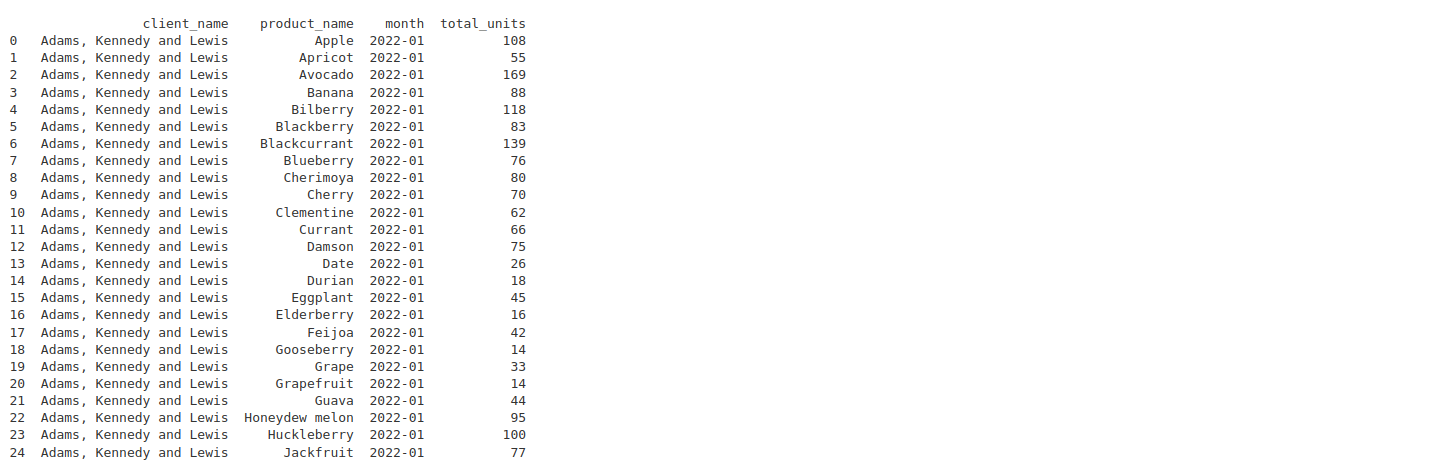
sql_df = execute_sql(DATASOURCE_UUID, sql_query).to_dataframe()
print(sql_df)
Execute workbench queries
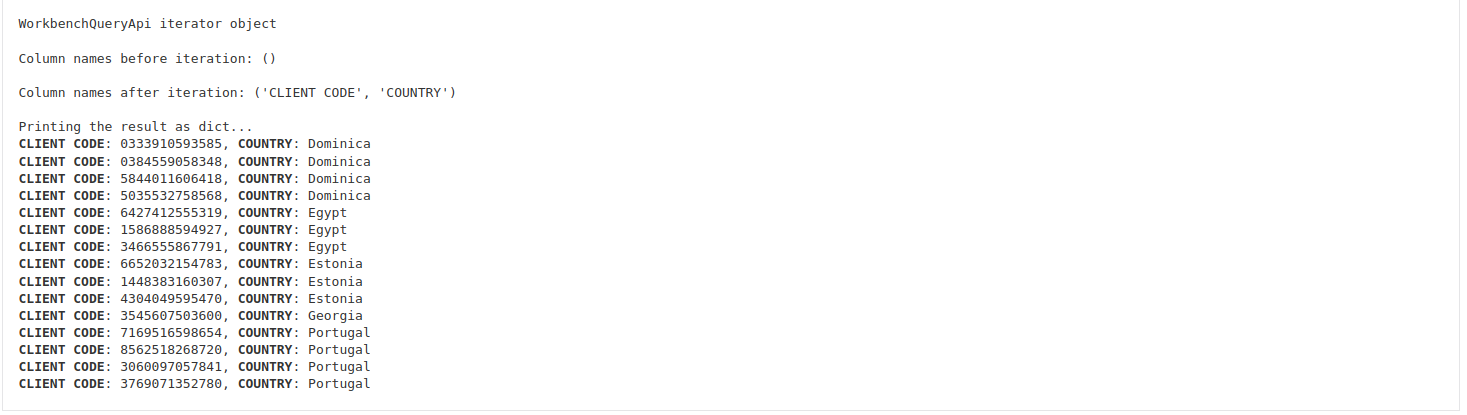
To execute a Workbench object we use the function execute_workbench(workbench_uuid: UUID) which must be imported from mineo_api.queries. In this case we will execute this workbench.
As arguments, it takes the workbench_uuid which can be obtained from the object properties. Take into account that if you modify the object through its detail page, the expected result from the query will be modified too!
from mineo_api.queries import execute_workbench

WORKBENCH_UUID = "37168aba-ca30-4960-a64e-d14ecc2dd3d2"

out = execute_workbench(workbench_uuid=WORKBENCH_UUID)
print(f"{out}\n")

print(f"Column names before iteration: {out.column_names}\n")

result = [element for element in out]
print(f"Column names after iteration: {out.column_names}\n")

print(f"Printing the result as dict...")
for value in result:
    print(f'\033[1m{out.column_names[0]}\033[0m: {value[0]}, \033[1m{out.column_names[1]}\033[0m: {value[1]}')
Persistent workbench queries
In case you don't want your Notebook to be affected when the workbench is modified, you can alternatively use the function execute_olap(table_uuid: UUID, olap_query: dict) which must be imported from mineo_api.queries.
As arguments, it takes the table_uuid which can be obtained from the table's detail page and the olap_query which is a python's dictionary which can be obtained in the Workbench's detail page under the 'Editor' section.
from mineo_api.queries import execute_olap

PYTHON_COLORS = ['\033[91m', '\033[92m', '\033[93m', '\033[94m', '\033[95m', '\033[96m', '\033[97m']

def get_color(hex_color):
    rgb_sum_color = sum(
        list(int(hex_color.strip("#")[i:i + 2], 16) for i in (0, 2, 4)))
    return PYTHON_COLORS[rgb_sum_color % len(PYTHON_COLORS)]


TABLE_UUID = "69371ad1-aabb-4609-bf1a-04ba59356ae7"

active_products_color = {
    "table":
    "product",
    "rows": [],
    "cols": [{
        "kpi": "product_name",
        "label": "PRODUCT"
    }, {
        "kpi": "product_color",
        "label": "COLOR"
    }],
    "aggregates": [],
    "cuts": [{
        "expression": "product_active IS TRUE"
    }],
    "order_by": [],
    "limit":
    10,
    "offset":
    0
}

out = execute_olap(table_uuid=TABLE_UUID, olap_query=active_products_color)
print(out)
for idx, (product_name, product_color) in enumerate(out, start=1):
    color = get_color(product_color)
    product_str = f"Product {idx}: {product_name} with color {product_color}"
    print(f"{color}{product_str}{color}")

Execution exceptions
During the execution of these queries the following exceptions can be raised:
- MineoAPITargetQueryNotFoundException: When the desired datasource/table/workbench uuid does not exist.
- MineoAPICannotPerformQueryException: This exception can happen in three different cases.
- The result can't be parsed to a valid json due to an incorrect format in the uuid or query.
- There was a bad request in the query.
- General errors.
from mineo_api.queries import execute_sql

print("1 - MineoAPITargetQueryNotFoundException")
try:
    execute_sql("96de291f-8d2c-4e2b-a555-139de9c5f990", "SELECT 1;")
except Exception as ex:
    print(ex)
print()

print("2.1 - MineoAPICannotPerformQueryException invalid json")
try:
    execute_sql("123123", "SELECT 1;")
except Exception as ex:
    print(ex)
print()

print("2.2 - MineoAPICannotPerformQueryException invalid query")
try:
    execute_sql("c9805225-1c17-4f44-8c56-6d17128c5217", "")
except Exception as ex:
    print(ex)
print()

print("2.3 - MineoAPICannotPerformQueryException general error")
try:
    execute_sql("c9805225-1c17-4f44-8c56-6d17128c5217", "SELCT ADS FROM ONE_ONE")
except Exception as ex:
    print(ex)
