The Download widget allows you to download a file directly from your notebook, offering the feature as a customizable button.
Basic usage
First, ensure you have a file available at a known path that you want to download. For example, if you have a CSV file named data.csv in your working directory:
Now, we create a Download widget and configure file_path as the input variable and save it. If you click the download button, you will get the file directly without any conversion.
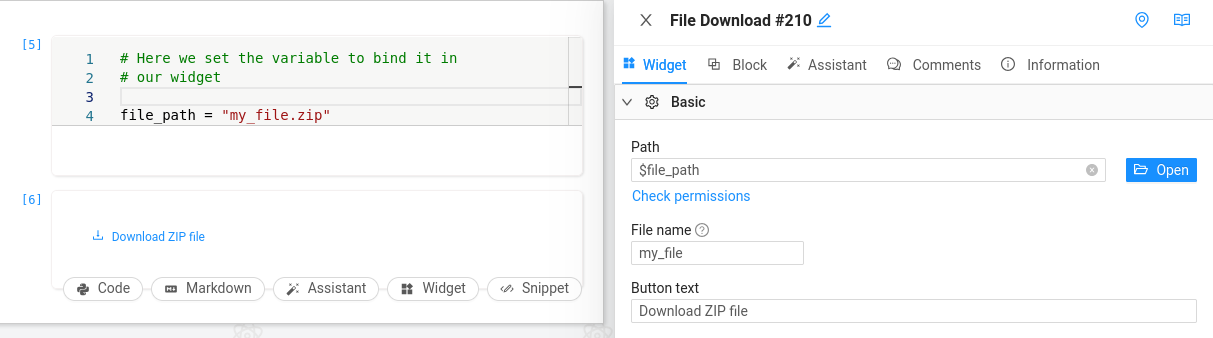
Usage to download any file
This widget is useful for offering downloads of any file type stored in your notebook's environment. Just specify the appropriate file path.
API reference
Basic
| Setting name | Type | Description | Default |
|---|
File path | string | Context variable of the file path. | |
File name | string | Name of the file to download. | output |
Button text | string | Text to display on the button. | |
Advanced
| Setting name | Type | Description | Default |
|---|
Verify path | boolean | Whether to verify the existence of the file path | true |
Style
Container
| Setting name | Type | Description | Default |
|---|
Container padding | string/css_padding | Padding of the container. | |
| Setting name | Type | Description | Default |
|---|
Button width | string/css_size | Width of the button. | 100% |
Button height | string/css_size | Height of the button. | 40px |
Button type | primary | dashed | link | text | default | Type of the button. | primary |
Button shape | round | circle | default | Shape of the button. | default |
Button color | string/css_color | Color of the button. | #007bff |
Text
| Setting name | Type | Description | Default |
|---|
Text color | string/css_color | Color of the text. | |
Font size | string/css_size | Size of the text. | |
Font family | string/css_font_family | Font family of the text. | |
Bold | boolean | Whether the text is bold. | false |
Position
| Setting name | Type | Description | Default |
|---|
Vertical alignment | start | center | end | Vertical alignment of the container | center |
Horizontal alignment | left | center | right | Horizontal alignment of the container | center |
See also
- All widgets — browse the full widget catalog.
- Upload — the counterpart for letting users upload files.
- Data Export — export tabular data as CSV or Excel.